V3 Accessport Subaru User Manual
- Will Trang
- Brandyn Mowat
- Former user (Deleted)

Accessport
User Guide
Subaru Turbo Models
Product Introduction
Congratulations on the purchase of the Accessport handheld programmer! The Accessport is the industry leading OEM ECU flashing, managing and monitoring assistant. Unlock power hidden within the ECU by replacing conservative factory settings with more aggressive calibrations. The result is impressive gains in torque and horsepower while maintaining a high degree of safety. The Accessport can:
- Reprogram the factory engine control unit (ECU) with improved tuning parameters through the on-board diagnostic (OBD-II) port
- Monitor and log vehicle sensor data using on-screen digital gauges
- Read and clear engine diagnostic trouble codes (DTCs)
- Measure 0-60mph, and ¼ mile times
- Adjust idle and timing
In-Box Contents
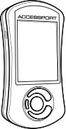
Accessport
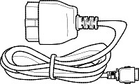
OBD-II Cable
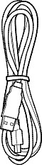
USB Cable
(USB 2.0 A to Micro B)
AP3-SUB-001 Accessports will also include two initialization connectors.

2002 WRX
Initialization Connector (Blue)

2003 – 2005 WRX
Initialization Connector (White)
WARNING! |
|---|
Installation and use of the Accessport may void all or a portion of the vehicle manufacturer's standard warranty. There is no guarantee expressed or implied by COBB Tuning or any of its affiliates for the use of the Accessport. The user accepts all risks and responsibilities when using the Accessport. |
| WARNING! |
|---|
| Use of the Accessport while operating a moving vehicle is strictly prohibited by law. COBB Tuning and its affiliates accept no responsibility for damages or injury caused by misuse of the Accessport. |
| WARNING! |
|---|
The Accessport may not be able to function if the vehicle's wiring has been modified. If problems occur while using the Accessport, please verify that all wiring to and from the ECU is correct and functional. |
Mounting Options
A universal 'sticky' mount is included with the Accessport. For the best results, we recommend installing the mount vertically and preparing the mounting surface with the included alcohol wipe.
- NOTE: It's important to note that not all surfaces provide a strong adhesive bond.
- NOTE: The Accessport cradle is compatible with "Dual T" style mounts.
Pre-Installation
The Accessport comes with the most up-to-date software and map files available at the time of shipment. However, it is possible that updated software and/or map files have been made available since the time of shipment. Therefore, the recommended procedure is to connect the Accessport to the AP Manager software and download the latest firmware for the target vehicle. Please visit www.cobbtuning.com/apmanager to download AP Manager and to find a link for the AP Manager manual.
If you have issues transferring maps or updating the Accessport while using USB 3.0 ports, please try using a USB 2.0 hub adapter.
- NOTE: The Accessport is preloaded with a default set of maps for all cars that it supports. This includes Stage1 (all octanes), Stage2 (all octanes), Anti-theft, Economy, and Valet. If you would like to view all maps available you can visit the Maps section of our website.
| IMPORTANT! |
|---|
For installation purposes, it is important to ensure that the vehicle's battery has adequate power for both the Accessport and the ECU. Because of this, it is recommended that all in-car electronics and vehicle lights are turned off during the installation process to reduce drain on the vehicle's battery. For improved safety during installation, a car battery charger can be connected to the vehicle during the installation process. |
Screen Capture
Screenshots can be captured by holding down the [CANCEL] button for two seconds. Any stored screen captures can be retrieved by using Accessport Manager.
Getting Started
1. You will need the Accessport and OBD-II cable to perform the installation. Insert the key into the vehicle's ignition and leave it in the OFF position.
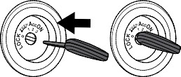
2. For Subaru models utilizing an AP3-SUB-001 or AP3-SUB-002 (Not required for AP3-SUB-003) Accessport, locate the green Test Mode connectors.
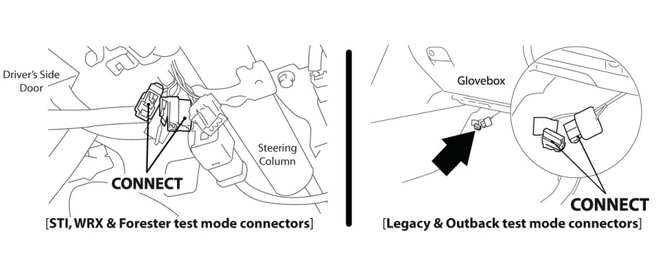
Impreza and Forester models will have this located under the driver's side dash to the left of the steering column (see left diagram). The Legacy and Outback models will have this located on the passenger side (see right diagram). With the connectors located, enable Test Mode by plugging the two connectors into each other. To ensure Test Mode was successfully enabled, turn the key to the ON position, but do not start the engine. You may hear the radiator fans cycling on/off as well as the fuel pump cycling and the 'Check Engine' light should blink. THIS IS A NORMAL FUNCTION OF TEST MODE. Once test mode is verified, turn the key back to the OFF position to continue.
- NOTE: The Test Mode connectors must be connected whenever reflashing the ECU (Installing, Change Map Reflash, and Uninstalling).
- NOTE: In the event that the vehicle does not enter Test Mode after plugging in the green connectors, refer to the Troubleshooting Section.
3. On 2002 – 2005 WRX models (AP3-SUB-001 Accessport), identify the correct Initialization Connector for your vehicle (2002 WRX = BLUE, 2003 - 2005 WRX = WHITE). Attach the Initialization Connector to the corresponding connector under the driver's side dash. This connector will be located near the green Test Mode connectors and will be translucent white in color. Do not proceed until this step is complete.
2002 WRX
Initialization Connector (Blue)
2003 – 2005 WRX
Initialization Connector (White)
4. Locate the vehicle's OBD-II port. The location of the OBD-II port may vary depending on the vehicle model.
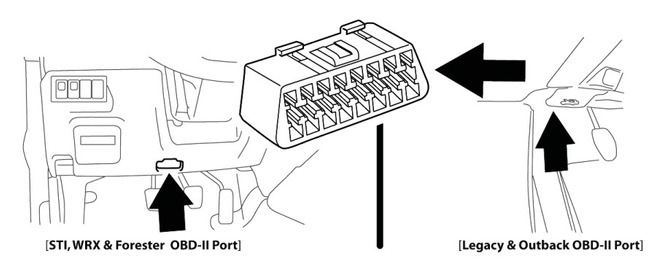
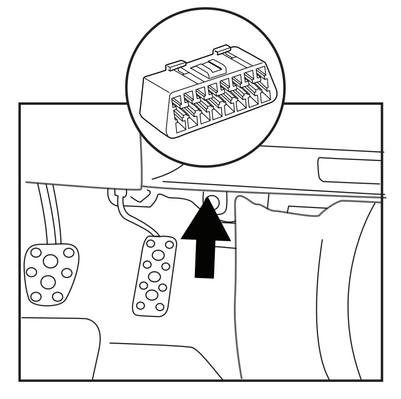
[ADM WRX, STI OBD-II Port]
5. Plug the OBD-II cable into the OBD-II port under the dash of vehicle. Then connect the small end of the OBD-II cable to the port on the bottom of the Accessport.
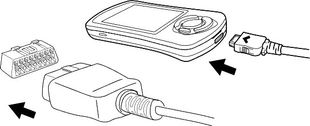
6. Make sure the clasp on the OBD-II cable firmly engages with the port.

7. Insert key into vehicle ignition and turn it to the ON position. Make sure climate control, headlights, and the radio are all turned off. If equipped with a push-button start, hit the start button twice without depressing the brake or clutch pedal.
NOTE: The engine
should not be running.
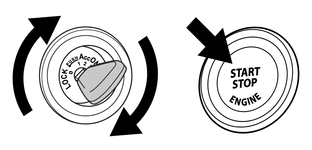
8. Select [Install] from the Accessport menu by pressing the [OK] button to proceed with the installation.
Accessport Buttons:

Vehicle Identification
The Accessport will attempt to automatically determine the target vehicle for installation. Verify that the identified vehicle is correct and press [OK] to confirm.
If an error occurs:
Please refer to the V3 Accessport Subaru User Manual#Troubleshooting.
Map Selection
After the Accessport identifies the vehicle, it will present a list of maps. Maps that are not intended for the identified vehicle are displayed in gray. The Accessport will reprogram the ECU with the calibration data from the map selected for installation. This will become the base data for the ECU. To ensure the best performance, select the map that most closely matches the modification level of the vehicle.
If you are unsure about which map applies to your modification level, please visit the Maps section of our website. You can find map notes for each of our maps by clicking on your vehicle and choosing your intake type. The map notes will list the modification requirements for each of our maps.
Select a map and press [OK] to proceed with the installation. If you wish to see a longer description for the highlighted map, press and hold the [OK] button on the desired map. After reading the description, you can press [CANCEL] to go back to the map list or press [OK] to select that map and proceed with the installation.
What Is A Map?
The Accessport reprograms the tuning parameters inside the factory engine control unit (ECU) using map files, which contain specially written instructions for the Accessport to follow during the reprogramming process. A map file can contain information for any number of different modifications or enhancements to a vehicle, ranging from a race map for a heavily modified vehicle to an economy map for a stock vehicle. Through the use of the Accessport and different map files, the ECU can be reprogrammed to accommodate virtually any vehicle configuration.
Save Stock ECU Program Data
After confirming the map to be installed, the Accessport will download the current stock ECU program data from the vehicle. The Accessport saves this data for use during the uninstall process to ensure that the vehicle is completely returned to stock. The download process will take a few minutes to complete.
| WARNING! |
|---|
| If a previous installation of an Accessport is detected, you will be given the option to overwrite it with a new installation. Be aware that the previous installation will be permanently lost and unrecoverable. This detection may occur prior to saving the stock ECU program data, in which case the ECU program data will not be saved. In the case of a previous install, a stock ECU program supplied on the Accessport will be used when you uninstall. |
Install Accessport Programming
With the stock ECU data saved, the Accessport will automatically proceed with installation to the vehicle. At this point, the Accessport reprograms the vehicle's ECU with new program data and calibration parameters from the installation map file. This process will take several minutes to complete.
| WARNING! |
|---|
| Do not disturb the Accessport and the OBD-II connector while the installation is taking place. Failure to do so may result in incomplete ECU reprogramming which will render the vehicle inoperable. If an error occurs during the reflash, the Accessport will enter Recovery Mode and attempt to recover the reflash. |
Installation Complete
Follow all on-screen prompts on the Accessport to complete the installation process. If applicable, disconnect the Test Mode connectors (green) you connected in Step 2 and the Initialization Connector you connected in Step 3. These connectors MUST be disconnected before operating the vehicle.
The Accessport is now fully installed and ready for use and the vehicle's ECU is programmed with new calibration data. The Accessport does not need to be plugged into the vehicle for the calibration to be in effect. You can disconnect the Accessport at this time or leave it plugged in to use any of the many features outlined below.
Please note that the Accessport is designed to work with only one vehicle at a time. Once the Accessport is installed, it cannot be used with another vehicle until it is uninstalled from the original vehicle.
NOTE: AP3-SUB-002 and AP3-SUB-003 cars will need to recalibrate the drive-by-wire throttle body system after a reflash or ECU reset. After a reflash, when you first turn the key to the ON position the throttle blade will open fully then return to a closed position. During these few seconds, the engine may not start. This is perfectly normal behavior. The engine will start when this process is done.
The best way to proceed after a reflash or ECU reset is to turn the key to the ON position and count to 5 – 10 seconds before trying to start the engine. If you follow this simple procedure, the engine will fire up on the first try.
Accessport Features & Functionality
Gauges
The Accessport can read sensor data from the factory ECU and display it as an on-screen gauge. This feature allows the Accessport to function as an auxiliary gauge displaying boost, RPM, temperature, or any number of other parameters available in the factory ECU.
The Accessport can also record sensor data from the factory ECU while you drive. With the ability to store multiple sessions, the Accessport can function as a complete engine datalogger and diagnostic tool. To begin datalogging, press the [OK] button while in the Gauges function. While the Accessport is recording a datalog, a single blue light will appear and oscillate through the shift light. To stop datalogging, press the [OK] button again. To view the results of your datalog sessions, simply connect the Accessport to your PC and retrieve the results using the AP Manager software. Data Log recordings are stored in a .csv (Comma Separated Values) format and are easily viewed using any spreadsheet application.
When you first select the Gauges function you will be defaulted to the V3 Accessport Subaru User Manual#Change Gauge Layout list so you can select which layout you prefer.
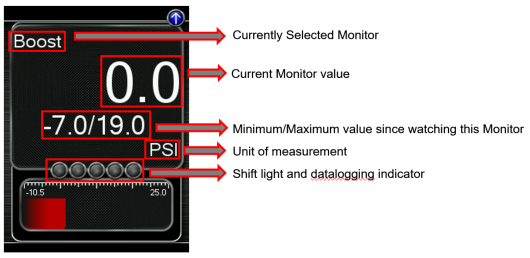
Press the [Up] or [Down] button to select the header. Then press the [Down] button to highlight the monitor you would like to interact with and press [OK]. You will then be presented with the following options.
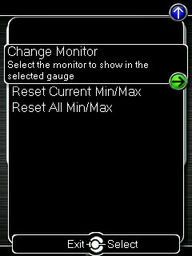
Change Monitor – Select the monitor that will be shown in the selected gauge
Note: While in the Change Monitor list, you can press [UP] to find a Sort Monitors option. This option will sort all monitors in reverse alphabetical order.
Reset Current Min/Max – Reset the minimum and maximum values of the selected gauge
Reset All Min/Max – Reset the minimum and maximum values of all gauges
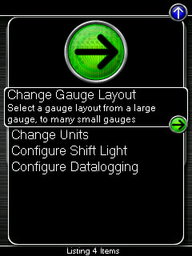
Change Gauge Layout – Select a gauge layout from a single large gauge to many small gauges
Change Units – Set the unit scheme
Configure Shift Light – Adjust the RPM of the Shift Light
Configure Datalogging – Select which monitors to datalog
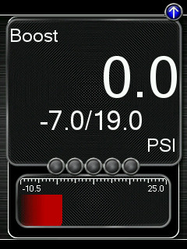
One Gauge
- one large Digital Gauge w/ Bar Gauge
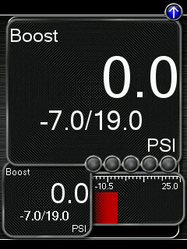
Two Gauges
- one large Digital Gauge
- one small Digital Gauge w/ Bar Gauge
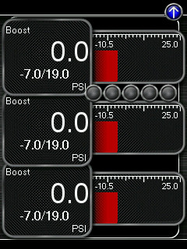
Three Gauges
- three small Digital Gauges w/ Bar Gauges
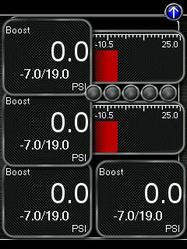
Four Gauges
- two small Digital Gauges w/ Bar Gauges
- two small Digital Gauges
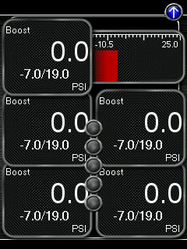
Five Gauges
- one small Digital Gauge w/ Bar Gauge
- four small Digital Gauges
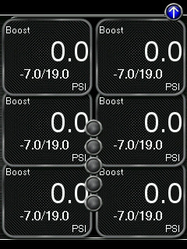
Six Gauges
six small Digital Gauges
Change Units
Metric – This unit scheme uses metric units: C, kph, kPA, Lambda
Metric w/ AFR – This unit scheme uses metric units (excl. AFR): C, kph, kPA, AFR
Imperial – This unit scheme uses imperial units: F, mph, PSI, AFR
Configure Shift Light
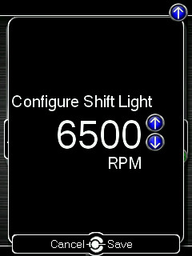

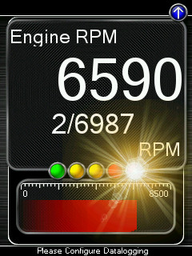
Press [OK] and using the [Up] and [Down] buttons, set the RPM to the desired level to have the shift light flash. Press [OK] to save the RPM you have selected. By default, the shift light RPM is set above the stock redline. This essentially disables the shift light since that RPM will not be reached. You will need to lower the shift light RPM to enable this feature.
Press [UP] to find the Setup option for the Shift Light, where you will find the following options:
Disable Shift Light – Disables the shift light function and removes the shift light from the gauges screen.
- NOTE: When you initiate a datalog, the shift light will reappear to notify you that you are logging.
Reset Shift Light – Resets the shift light back to the default value.
Configure Datalogging
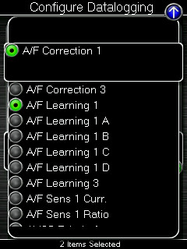
This list allows the user to enable and disable items for logging. Only monitors with a green circle will be recorded while using the datalogging feature. A default log list including a group of monitors compiled by our in-house tuners has been provided. You can make changes to the log list by highlighting a monitor and pressing the [OK] button to activate/deactivate it for logging. Pressing the [Cancel] button will save any changes you have made to the datalog list.
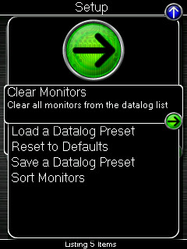
Press [UP] to find the Setup option for Configure Datalog where you will find the following options:
Clear Monitors – Clear all monitors from the datalog list
Load a Datalog Preset - Load a predefined set of datalog monitors
- See Data Log Presets for complete details
Reset to Defaults – Restore the datalog list to the default list
NOTE: You will be notified if you have exceeded the recommended amount of monitors to record in one datalog. If you receive this prompt, reduce the number of monitors you are recording.
NOTE: The Accessport is only capable of datalogging while the ignition is turned to the ON position. The Accessport will display an error message if it cannot communicate with the vehicle.
NOTE: Up to 10 log files can be stored on the Accessport. Use AP Manager to delete unneeded logs. If datalogging is started when there are already 10 log files on the Accessport, the log file with the lowest numerical value will be automatically overwritten.
NOTE: The 10 log files can be a combined length of 2+ hours long.
Save a Datalog Preset - Save the current list of datalog monitors to quickly load later
- See Data Log Presets for complete details
Sort Monitors – Sort the monitor list alphabetically, then reverse-alphabetically
Performance
The Accessport can calculate several performance measurements.
NOTE: The Accessport is only capable of calculating performance test results while the ignition is turned to the "ON" position. The Accessport will display an error message if it cannot communicate with the vehicle.
0-60 MPH
To record the 0-60 MPH performance, select this menu option and follow instructions. A time slip showing the performance results will be displayed at the end of the performance test.
¼ Mile
To record the ¼ Mile performance, select this menu option and follow instructions. A time slip showing the performance results will be displayed at the end of the performance test.
Change Units
Press [UP] to find the Setup option for Performance where you will find the option to Change Units.
Metric – This unit scheme uses metric units: C, kph, kPA, Lambda
Metric w/ AFR – This unit scheme uses metric units (excl. AFR): C, kph, kPA, AFR
Imperial – This unit scheme uses imperial units: F, mph, PSI, AFR

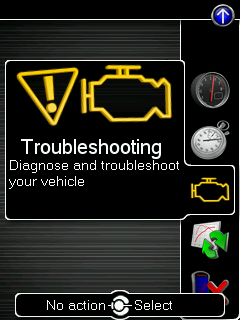
Troubleshooting
Use the Accessport as a diagnostic tool.
NOTE: The Accessport is only capable of communicating with the ECU while the ignition is turned to the "ON" position. The Accessport will display an error message if it cannot communicate with the vehicle.
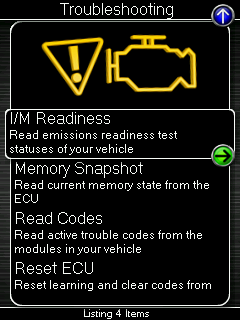
Read Codes
Use this function to read trouble codes from the engine computer. Stored codes indicate a mechanical or electrical fault. Use the up/down buttons to highlight a code and display a short description of the trouble code (if available).
Reset ECU
Use this function to reset all trouble codes.
NOTE: Just like pulling the negative battery terminal to reset the ECU, this will clear out any stored compensations and optimizations made by the ECU (such as long term fuel trims). If you are running a different realtime map than your reflash map, it will also reset your realtime map.
NOTE: AP3-SUB-002 and AP3-SUB-003 cars will need to recalibrate the drive-by-wire throttle body system after a reflash or ECU reset. After a reflash, when you first turn the key to the ON position the throttle blade will open fully then return to a closed position. During these few seconds, the engine may not start. This is perfectly normal behavior. The engine will start when this process is done.
The best way to proceed after a reflash or ECU reset is to turn the key to the ON position and count to 5 – 10 seconds before trying to start the engine. If you follow this simple procedure, the engine will fire up on the first try.
Memory Snapshot
Use this feature to save a snapshot of the current ECU memory state. This function is primarily for use by Tech Support for troubleshooting purposes. To take a Memory Snapshot, select Troubleshooting from the main menu. Then, scroll to "Memory Snapshot" and press the center button. You will then see the status bar. When this gets to 100%, the Snapshot is complete. You can then use AP Manager to transfer the file to your computer.
Identify Vehicle
Identifies the year, make, and model of your vehicle.
- For more details see - How To Identify Vehicle Rom Using an Accessport
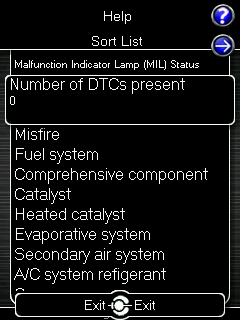
I/M Readiness
Use this feature to read the emissions readiness test statuses of your vehicle. To read emissions readiness, Select Troubleshooting from the main menu. Then, scroll to I/M Readiness. You will see an extensive list of readiness monitors.

Tune
Change the performance of your car.
Change Map
To change the mapping on your ECU, select this menu option and follow the instructions. The ignition must be turned to the "ON" position during the Change Map operation. You will be prompted to select a pre-loaded map. The same warning that apply to the installation process apply here as well (battery charge level, turn accessories off, etc.)
- Reflash: Permanent and complete reflash of the calibration onto the ECU. For AP3-SUB-001 and AP3-SUB-002 part numbers, the Accessport will request for the vehicle to be placed in ECU reprogramming mode. Follow the on-screen prompts to complete this step.
NOTE: It is recommended to keep your Reflash map as the map that most closely matches your mechanical set-up (example: If you have an upgraded turbo-back exhaust, leave your Reflash map as the Stage2 performance map).
- Realtime: Temporary and partial reflash of the calibration onto the ECU. The calibration will remain in the ECU until the ECU loses power or is reset.
NOTE: Common uses for Realtime map changes would be a temporary use of the non-performance maps (Economy, Valet, etc.) or an octane change (ACN91, 91, and 93) or wastegate duty cycle change (HWG or LWG) within the same Stage map.
NOTE: The Accessport will only allow Realtime and Reflash maps from the same vendor. For example, a custom map from a professional tuner must be used as the Reflash AND Realtime map.
Adjustments
- Adjust Idle: The Accessport allows users to adjust the idle RPM up to +/- 100RPM. There are different settings for use with A/C on and A/C off. **Note: Only available on select models, This function can be found under the Tune→Adjustments section of the Accessport.
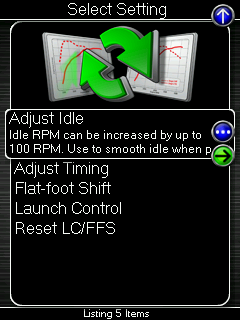
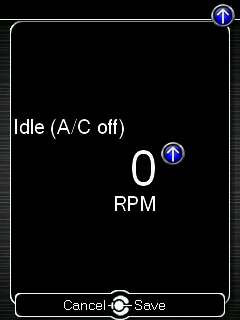
- Adjust Timing: The Accessport allows for global timing adjustment that can retard timing up to 5 degrees. **Note: Only available on select models
- Launch Control: The Accessport allows for setting a specific RPM threshold for launching.
- *Flat-Foot Shift (Not available for the 2002-2005 WRX): The Accessport allows for setting a specific RPM threshold for flat-foot shifting. **Note: Only available on select models
- *Reset LC/FFS: Resets the Launch Control and Flat-foot Shift RPM values to the defaults in the current map as flashed onto the vehicle. **Note: Only available on select models
- Notes:
- Launch Control and Flat-Foot Shift are only available for turbocharged vehicles with manual transmissions.
- Flat-Foot Shift is not available for the 2002-2005 WRX due to hardware limitations in these vehicles (no electronic throttle body).
- WARNING: Launch Control and Flat-Foot Shift (LC/FFS) are abusive to the engine, clutch, transmission, axles, and differentials. The user must accept all risks and responsibilities for using these features.
- For more information on what these features do and how to use them, please refer to the Launch Control and Flat-Foot Shift FAQ document.
Restore OTS Map
Select this option to Restore COBB Off-The-Shelf Maps that have been deleted from the Accessport.
Show Current Map
To see the last map that was flashed to your car, select this menu option. You can press the [OK] button to see a detailed description of the map.
- Reflash: The last map loaded via "Reflash" option during Change Map.
- Realtime: The last map loaded via "Realtime" option during Change Map.
Uninstall
Selecting this option will remove the Accessport programming from the vehicle on which it is installed, reverting the ECU to a stock state. It is highly recommended to uninstall the Accessport prior to taking your car to the dealer for any type of service. It is also crucial that you uninstall your Accessport if you plan on selling your vehicle or Accessport separately. Otherwise, the Accessport will still be paired to your vehicle and cannot be installed to another car.
Setup
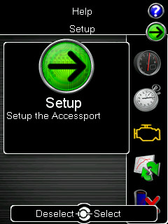
To enter the Setup function, press the [Up] button to bring up the header above the Gauges icon. From here you will have access to the following options:
Auto On/Off Settings – Enable this feature and your Accessport will power on and off with your vehicle.
- Enable Auto On/Off – This will enable the Auto On/Off Feature.
- Enable Diagnostic Logging – You may be instructed by a CSR to enable this function when diagnosing issues.
- Enable Low Battery Shutdown – This will shut the Accessport down if battery voltage drops below 10v.
Change Language - Choose from an array of various languages (Note that not all menu entries are translated).
Change Units – Choose from Standard, Metric, and Metric with AFR.
Reset to Defaults – Reset all user settings back to default.
Help
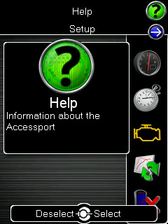
About Accessport: Displays technical information about the Accessport.
- Firmware
- Part Number
- Serial Number
- Installation State
- Vehicle
Context Help: Shows more information about the screen you are currently viewing.
Button Help: Displays the button map.
Icon Help: Displays the various icons you will find on the Accessport.
Demo Mode: This function allows you to run through a mock installation and use all of the features of the Accessport without connecting to a vehicle.
Recovery Mode

If an error occurs during a reflash the Accessport and ECU will enter recovery mode. By selecting this option the Accessport will uninstall itself, leaving your ECU in a stock state so that you can start over.
NOTE: For Recovery Mode to function correctly, you must first resolve the condition that caused the initial reflash failure. For example, if your battery voltage dropped too low during the reflash, put a battery charger on the car before attempting to use Recovery Mode.
Accessport Troubleshooting
Symptom | Troubleshooting Steps |
Accessport will not communicate with the vehicle. |
|
Accessport cannot reflash ECU. |
|
Accessport cannot identify the vehicle during installation. |
|
My car won't enter test mode.AP3-SUB-001 and AP3-SUB-002 cars only |
|
Support Contact Information
Web | |
Phone | (866) 922-3059 |
Environmental Information
Operating and Storage Temperatures
The Accessport is designed to be operated at temperatures between 32° and 95° F (0° and 35° C) and with relative humidity below 90%. Using the Accessport outside of these recommendations may result in damage.
The Accessport is thermally protected and will not function if the temperature reaches extremely hot levels. If the Accessport is not booting up correctly or the screen does not show everything correctly, turn the device off and move it to a cooler environment temporarily.
When storing the Accessport, do so in a place where the temperature is always between 0° and 115° F (-20° and 45° C) and relative humidity below 90%.
Never store your Accessport in an area that receives direct sunlight.
Avoid Moisture
Take care to prevent any liquids from coming in contact with the Accessport or any associated equipment.
If your Accessport or any associated equipment gets wet, professional repair may be required. In such cases, please contact technical support BEFORE attempting to use the Accessport.
Handling and Storage
Your Accessport may be damaged by improper storage or handling. Be careful not to drop your Accessport or any associated parts.
Never store your Accessport in an area that experiences any noticeable levels of vibration, static electricity, heat shock, or excessive swings in relative humidity.
Do Not Attempt Repairs Yourself
Never attempt to open your Accessport or any associated equipment. Doing so puts the components at risk of damage from, but not limited to, static shock. No user-serviceable parts are inside. At no time will ANY authorized representative of COBB Tuning, Inc. ask you to open or mechanically/electronically alter the Accessport.
Opening the Accessport will void any and all warranties for the device and its operation.
Related content
Copyright 2025 © COBB Tuning Products LLC. All Rights Reserved. | www.cobbtuning.com